
Vim tips + tricks Want to support this page AND learn Vim? Check out https://xitter.cf/t.co/2oJQx5huwf OR https://xitter.cf/t.co/bcssgcdD4q Owned by @iggredible
Joined November 2019
- Tweets1.4K
- Following18
- Followers10.6K
- Likes625
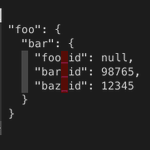
If you have the jq command github.com/jqlang/jq installed, you can use it to format JSON in Vim!
On the line where you have a large JSON object:
{ "foo": { "bar": { "foo_id": null, "bar_id": 98765, "baz_id": 12345 } } }
Run:
:.!jq .
Vim bang operator/cmd: :h !
#vim
The vim-yoink plugin lets you to yank multiple times and quickly choose which yanked text to paste (with Ctrl-n/Ctrl-p).
If you use copy/paste often, check it out!
github.com/svermeulen/vim-yo…
#vim
If you want to resize, swap, and move windows, the winresizer plugin (github.com/simeji/winresizer) can quickly resize your vim window with its resize mode.
Check it out!
#vim
If you have one large window and one small window, you can make them equal size with Ctrl-w + =
:h CTRL-W_=
#vim
You can "swap" windows with Ctrl-w + r
(technically it's down/right-ward rotation, but works like a swap with only 2 windows)
:h CTRL-W_r
#vim
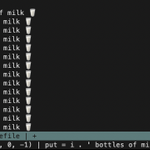
To roll a dice 5 times:
:for i in range(1,5) | put='Dice roll: ' . (rand() % 6 + 1) | endfor
#vim
There are 5 different history commands in Vim:
:his c or : - command-line history (q:)
:his s or / or ? - search history (q/ or q?)
:his e or = - expression history
:his i or @ - input history
:his d or > - debug history
#vim
= is the filter operator (by default it indents). If you want to indent the entire buffer, run:
gg=G
- gg goes to the top
- =G indent operator + all the way to the bottom
Use `` to go back to the original location.
Try: gg=G``
More:
stackoverflow.com/questions/…
:h =
#vim
Press Ctrl-W o`` to zoom the current window and close other open windows (You can also run `:on`)
#vim
If you want to close the current window, you can press Ctrl-w + c
More: :h CTRL-W_c
#vim
If you use fugitive.vim, you can use git grep to use a keyword in a specific branch / SHA
:Ggrep MY_FOO some-branch
:Ggrep MY_FOO some-sha
Useful if you want to see if / how a text looks like in a different branch
:h :Ggrep
github.com/tpope/vim-fugitiv…
#vim
Let's say you have:
apples
oranges
apples
bananas
To search for apples FOLLOWED BY bananas (and not apples followed by oranges), you can use a multi-line search
/apples\_.bananas
:h \_x
#vim
Last time we looked at :vimgrep to search for keywords.
:vimgrep /Waffles/ app/**/*.rb
To add more results into your last search, you can use :vimgrepa. To also search for Pancakes:
:vimgrepa /Pancakes/ app/**/*.rb
Now you have a list of Waffles AND Pancakes.
#vim
Vim has an internal grep to search for texts in files, :vimgrep.
If I want to search "Waffles" inside ruby files inside app/ directory:
:vimgrep /Waffles/ app/**/*.rb
To display the quickfix list result:
:copen
Try it!
#vim
When you pass multiple file names when you run Vim from the terminal (vim bar.rb foobar.lua), Vim stores those files inside the argument lists, which you can access with
:args
You can navigate through the argument lists with :next, :prev, :first, :last.
:h arglist
#vim
To open the content of another file, use the :read command
To read the content of foo.txt:
:r foo.txt
#vim